
How to remove a person or object from a photo on Android
By Four K Computing ·
Short answer
Open the photo in FourSnap, tap AI Eraser, paint over the person or object you want gone and tap Erase. The AI rebuilds what was behind it - sand, sky, grass or wall - right on your phone. Tap the check mark to keep the result and save it at full resolution.
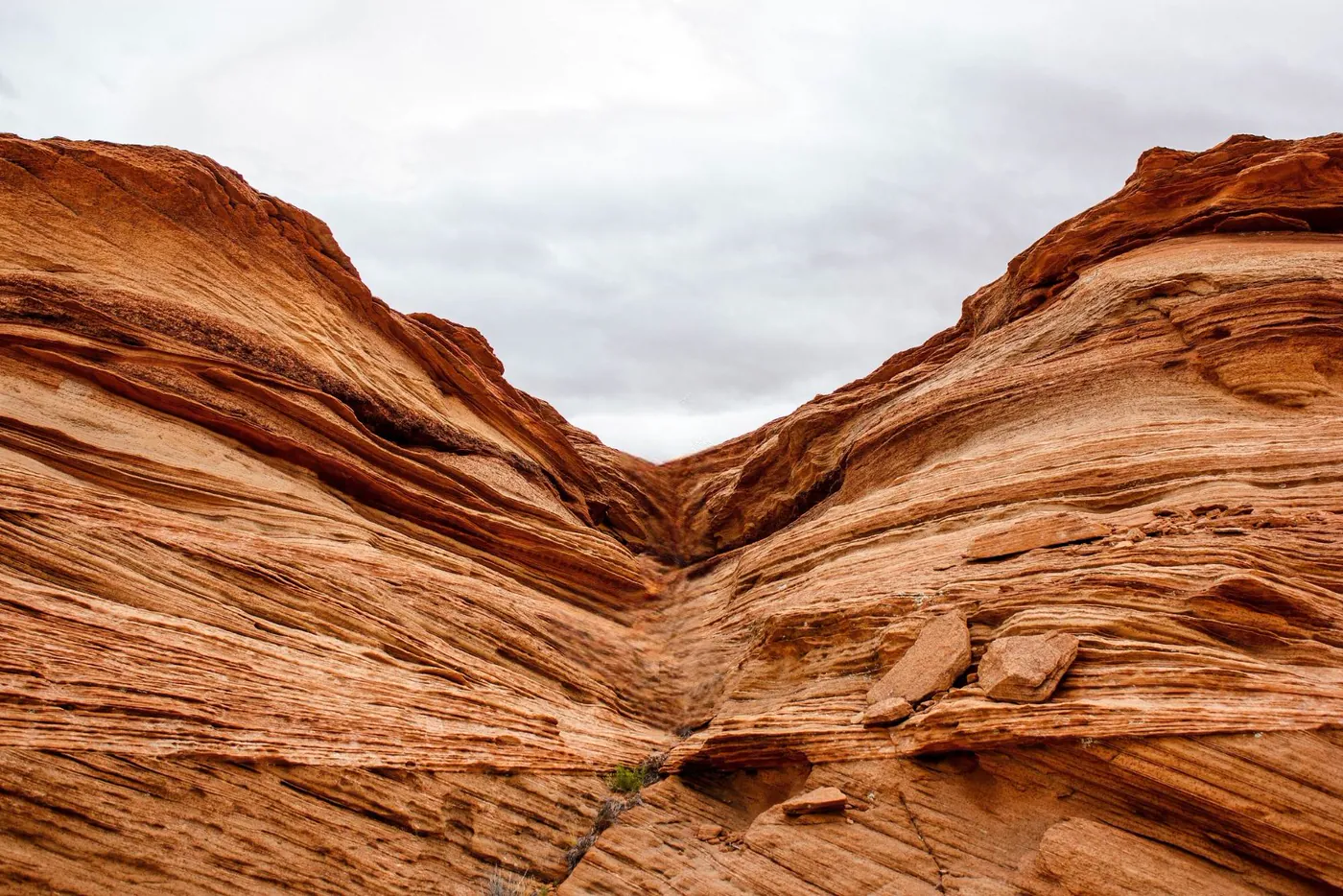
 BeforeAfter
Drag to compare: the hiker removed with AI Eraser.
Step by step
- 1
Open AI Eraser
Open FourSnap and tap AI Eraser on the home screen. (In the editor it is also under Tools.)
- 2
Pick your photo
Choose the photo from your gallery. It opens at full resolution.
- 3
Mark what should go
Paint over the person or object. Lift your finger and paint again to add more. Turn on Smart so your marks snap to the object's outline - shadows and edges included.
- 4
Tap Erase
FourSnap removes everything you marked and fills the space with what should be behind it. Not quite right? Undo, mark a little wider, and erase again.
- 5
Keep it
Tap the check mark, then Export to save it to Photos as JPEG, PNG or WebP at full size.
Tips for a clean result
- Mark a little beyond the edges of what you are removing, including its shadow and reflection - leftovers are what give an edit away.
- Remove big objects in two or three passes rather than one huge mark.
- Use the brush size slider: a big brush for people and cars, a small one for wires, poles and specks.
- Pinch to zoom in for small or detailed areas.
- Use the compare button to flick between before and after.
What works best
AI erasing is at its best when what is behind the object is fairly natural or repeating: sky, sand, grass, water, rock, a plain wall or a road. People in the background of travel photos, tourists in front of landmarks, bins, signs, power lines and photobombers are all good candidates.
It is harder when the object covers something the AI has to invent in detail, such as half of another person's face or lettering. For those, erase in smaller pieces and check each step.
Full AI Eraser or quick healing
For the strongest removal, FourSnap uses an optional AI Eraser model you can download in Settings. It is offered on phones with 6 GB of RAM or more. Without it, FourSnap fills in from the surroundings instead, which works well for small spots, specks and thin objects.
Either way, everything runs on your phone. Your photo is never uploaded.
Questions
Is it possible to remove a person from a photo without uploading it?
Yes. FourSnap runs its AI on your phone, so the photo never leaves it. The app has no internet access of its own.
Does removing an object lower the photo quality?
No. FourSnap edits at full resolution and restores the photo's own grain over the erased area, so the fix blends in on large photos too.
Can I undo an erase?
Yes. Every mark and every erase can be undone and redone until you tap the check mark.
FourSnap
The AI photo editor that runs on your phone.
AI Eraser, background remover, face retouch and filters. No uploads, no account. Coming soon to Google Play.
See FourSnap